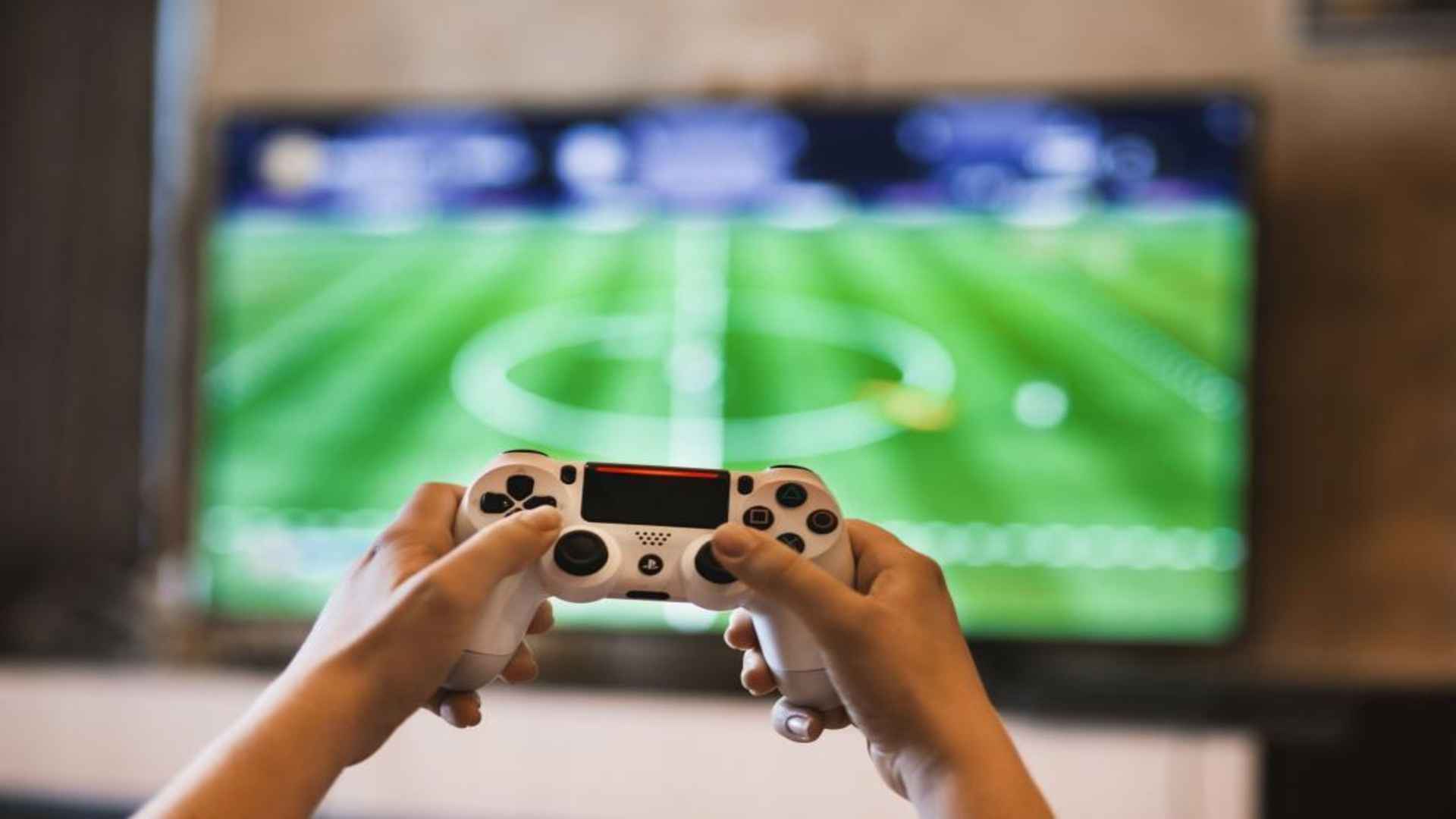
The Sony PlayStation 5 DualSense controller has earned widespread praise for its ergonomic design and advanced haptic capabilities. Many desktop gamers are curious whether this console accessory can transition smoothly into a computer environment. Fortunately, connecting a PS5 controller to your PC is highly achievable and enhances your gameplay across various digital platforms.
Establishing a Reliable Wired Connection
The most straightforward method to utilize your peripheral is through a standard physical tether. By connecting a high-quality USB Type-C to USB-A or Type-C cable directly to an open port on your computer, the operating system will instantly recognize the hardware. This configuration provides a stable experience with zero latency, making it ideal for fast-paced competitive matchmaking.
Furthermore, a wired setup is often required to unlock the most advanced capabilities of the DualSense. Certain modern titles natively support the controller on PC but require a physical cable to pass complex haptic feedback and dynamic trigger data. Keeping a reliable cord at your desk ensures you can quickly plug in and enjoy maximum responsiveness without worrying about battery depletion.
Navigating Wireless Bluetooth Pairing
If you prefer a clutter-free environment, pairing the controller wirelessly via Bluetooth is an excellent alternative. To initiate this process, press and hold the central PS button and the Create button simultaneously until the light bar begins to flash rapidly. You can then open your system settings, locate the menu to connect a PS5 controller to your PC, and complete the sync process within moments.
While wireless play offers incredible physical freedom, it can occasionally introduce slight latency depending on your environment. Heavy wireless interference or older desktop hardware reception might cause a slow response during intense gaming sessions. Using a dedicated Bluetooth adapter or sitting closer to your machine will help maintain optimal wireless signal integrity.
Configuring Software and Platform Support
Major modern storefronts like Steam provide deep integration for the DualSense right out of the box. The built-in controller configuration tools allow you to remap buttons, adjust joystick deadzones, and even customize the color of the integrated LED light bar. This extensive software layer ensures older titles without native layout support can still interpret your inputs correctly.
For games purchased outside of major storefronts, third-party emulation software can bridge the compatibility gap seamlessly. These applications convert your PlayStation inputs into standard layout signals that almost every Windows game recognizes automatically. This ensures you can enjoy your favorite virtual worlds regardless of the launcher you choose.
Evaluating Game Integration and Feedback
It is important to manage expectations regarding specialized features like adaptive triggers and advanced haptics. While a growing list of AAA developers officially implement these immersive options into their PC releases, many standard ports will treat the device as a traditional gamepad. In these instances, you will receive standard rumble effects rather than localized tension variations.
Ultimately, bringing your console controller to the desktop ecosystem offers a premium alternative to traditional hardware options. The balance of superb physical ergonomics, flexible connectivity methods, and robust software configuration makes it a favorite choice among cross-platform players. Investing a few minutes into proper setup will completely elevate your PC gaming experiences.